NetSuite AI Connector: The Ultimate Setup Guide for Claude AI
The NetSuite AI Connector acts as a sophisticated bridge utilizing the Model Context Protocol (MCP) to allow Claude AI to securely interact with your business data. This integration empowers users to complete complex analytical tasks in seconds rather than hours. By leveraging MCP or Model Context Protocol, NetSuite has provided a powerful framework that will fundamentally change how stakeholders—from the CFO and CEO to Account Executives—interact with their NetSuite account.
A primary benefit of this architecture is the secure, role-based access that ensures you maintain full control of data flowing to and from Claude AI. This setup is a critical step for any organization looking toward a future of full AI integration.
What is the NetSuite AI Connector and Why Does Your Business Need It?
The shift from manual data analysis to AI-driven insights is the new standard for efficient ERP management. For years, businesses have spent countless hours parsing through static reports and spreadsheets. The NetSuite ai connector eliminates this friction by allowing you to ask your ERP natural language questions and receive real-time insights. This transition allows leadership teams to move away from data retrieval and focus entirely on high-level strategic decisions.
6 Steps to Configure Your NetSuite AI Connector via Claude Pro
Following these steps will help you transition from a standard environment to an AI-connected ERP ready for advanced automation. Please note that these configuration steps must be performed by a user with NetSuite Administrator privileges.
1. Download the free MCP SuiteApp
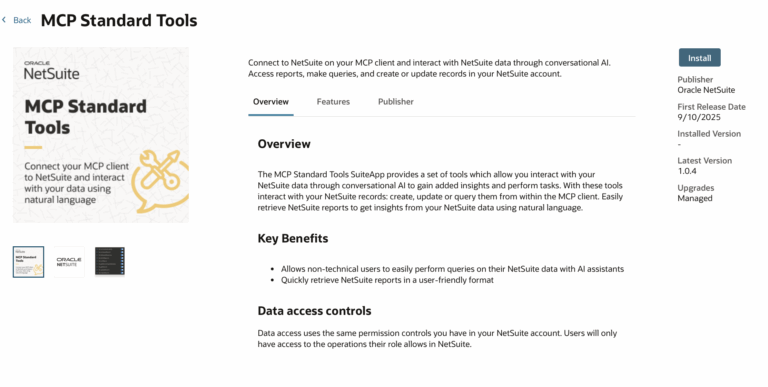
Begin by navigating to the SuiteApp Tab within your NetSuite dashboard or by visiting the official SuiteApp library. Search for “MCP” and select the “MCP Standard Tools”option to begin the installation. Once finished, you can verify the status in your installed apps overview.
2. Enable Features in NetSuite
Proper functionality requires specific backend settings. Navigate to Setup > Company > Enable Features and select the SuiteCloud tab. Ensure that Client SuiteScript, Server SuiteScript, OAuth 2.0, and REST Web Services are all enabled to support the connection.
3. Create a new role or add to an existing non-admin role
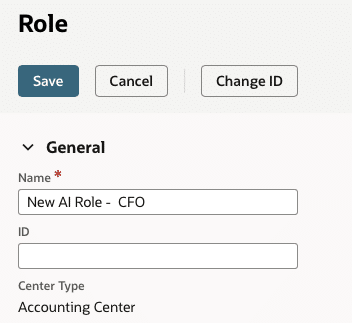
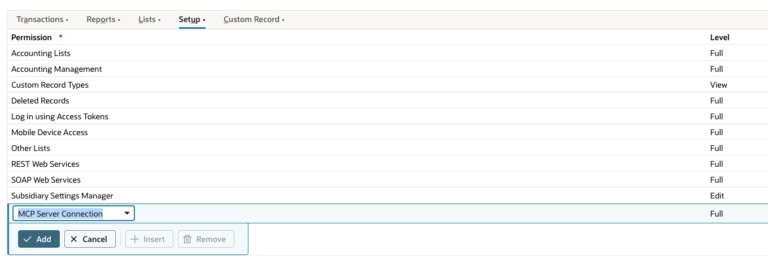
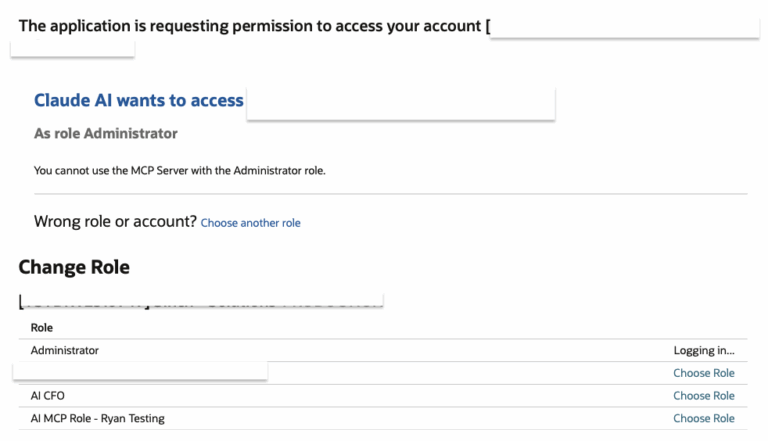
Because the connector does not allow Administrator roles for security reasons, you must set up a custom NetSuite role or update an existing non-admin role. Under the Permissions and Setup tabs, add “MCP Server Connection” and “Login in using OAuth 2.0 Access Tokens” with Full access. For the most accurate testing, we recommend using the CFO role as a base before assigning the new role to your employee record.
4. Connect your Claude AI Pro account to the NetSuite MCP App
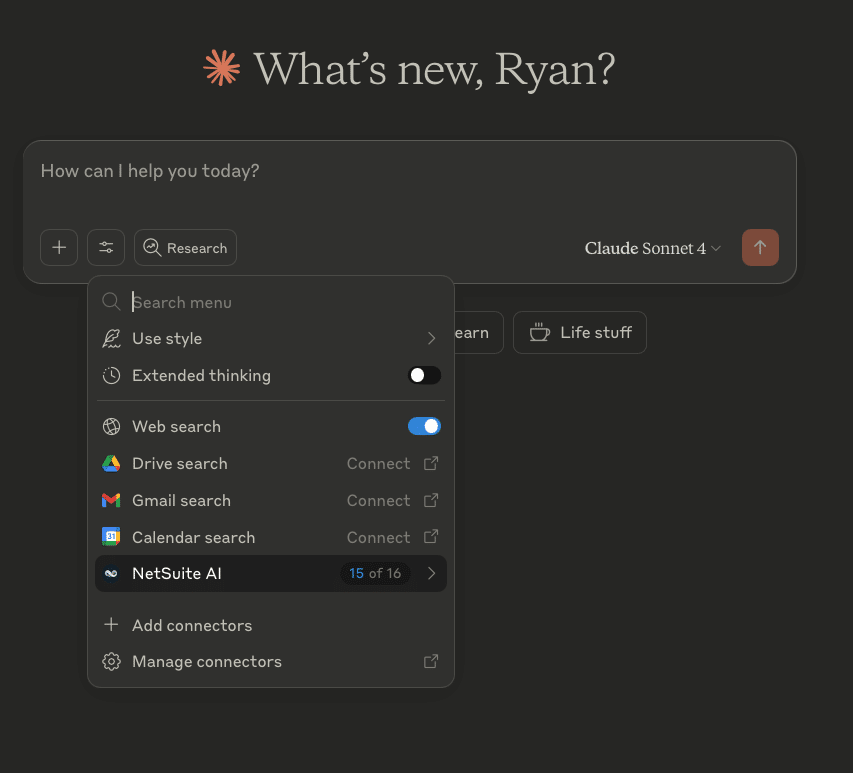
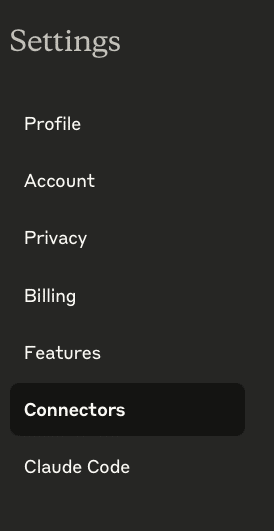
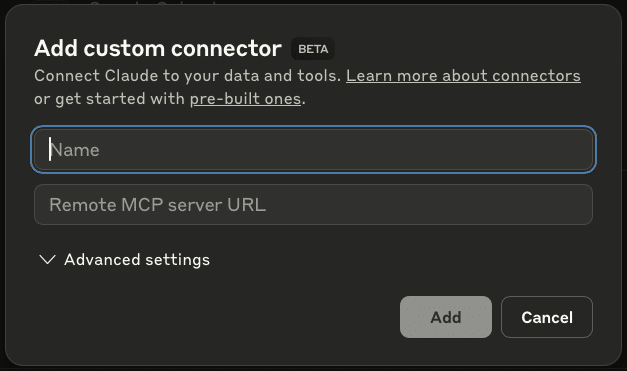
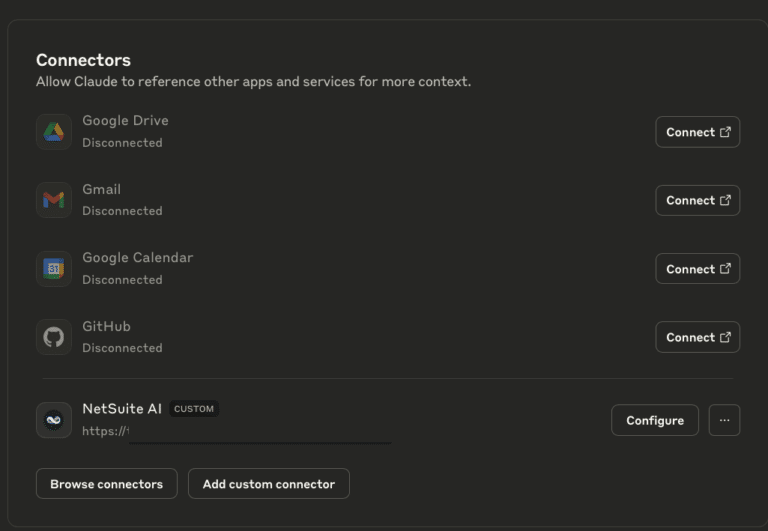
Log in to your Claude.ai Pro account and navigate to the Settings menu. Under the Connectors section, select “Add custom connector” and choose a descriptive name like “NetSuite AI.”
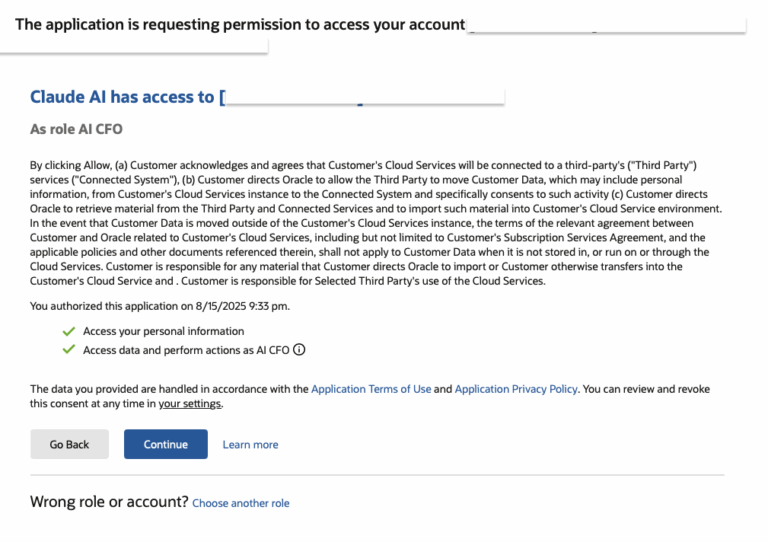
The Remote MCP server URL must follow a specific format: https://<companyid>.suitetalk.api.netsuite.com/services/mcp/v1/all. You can locate your specific NetSuite company ID within your account URL. After clicking connect, NetSuite will prompt you to authorize the connection—ensure you select the non-admin role you created in the previous step.
5. Configure the connection settings in your Claude account
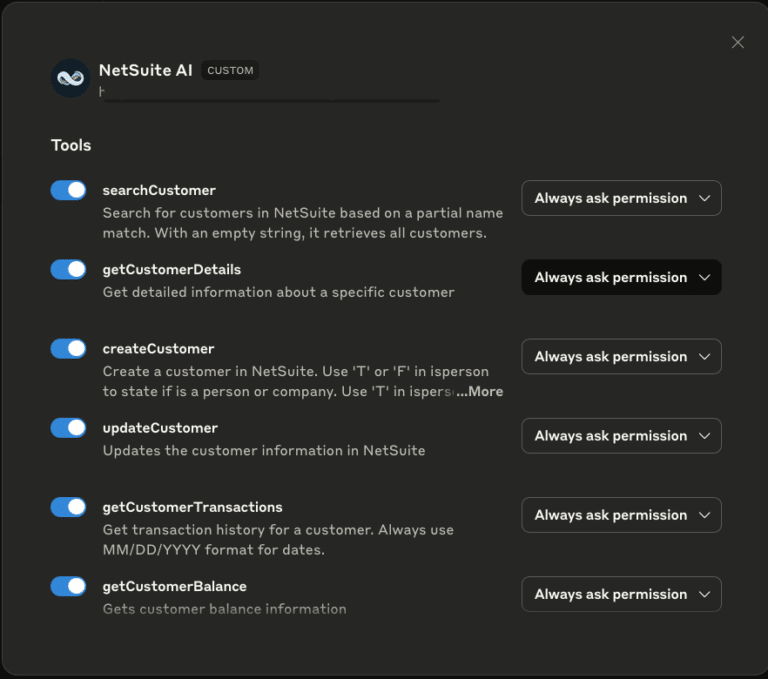
In the Claude settings menu, locate your new connector and select “Configure.” Within the dropdown menu for each tool, choose “Allow unsupervised.” This step is essential for allowing the AI to process data requests without manual confirmation for every sub-task.
6. Now your NetSuite account is connected to Claud AI.
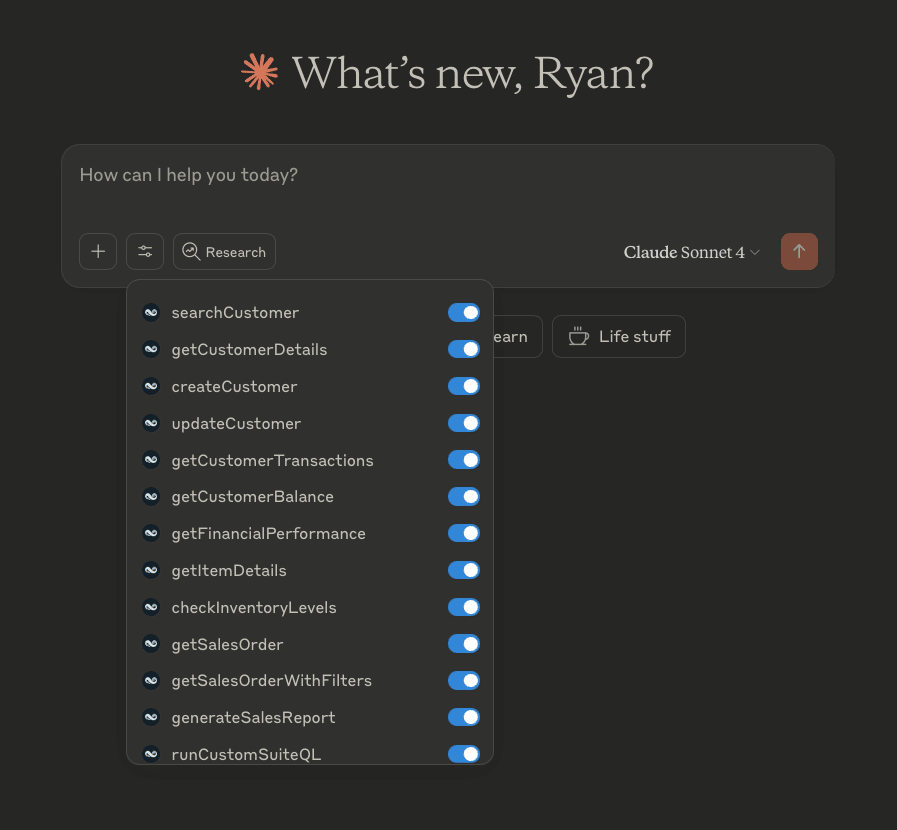
Your environment is now ready for use. You can begin exploring high-impact tasks such as comprehensive account reviews or automating your vendor analysis.
Once connected, these prompts provide immediate value for financial and operational leadership:
“Who are my top vendors and what is the total spend?”
“Evaluate all text messages and identify the top 5 common phrases.” This is particularly useful for teams using integrated NetSuite SMS solutions.
“Create ten test customers with random names and locations to assist with our sandbox testing.”
“Summarize my top 10 customers by revenue and identify any potential associated risks if we lost their business.”
“Review this uploaded invoice and add it to NetSuite; if the customer is missing, please create their record first.”
Common Troubleshooting for the NetSuite MCP Connector
If you encounter issues during setup, consider these common resolution steps:
Role Conflicts: The system will block any attempt to use a standard “Administrator” role; a custom role is required.
Legacy Apps: You must uninstall any “MCP Sample Tools” before the “MCP Standard Tools” can be properly configured.